Managing installed mods
The Mods page lists everything currently installed in your active profile. This is where you enable, disable, update, reorder, and remove mods.
The list
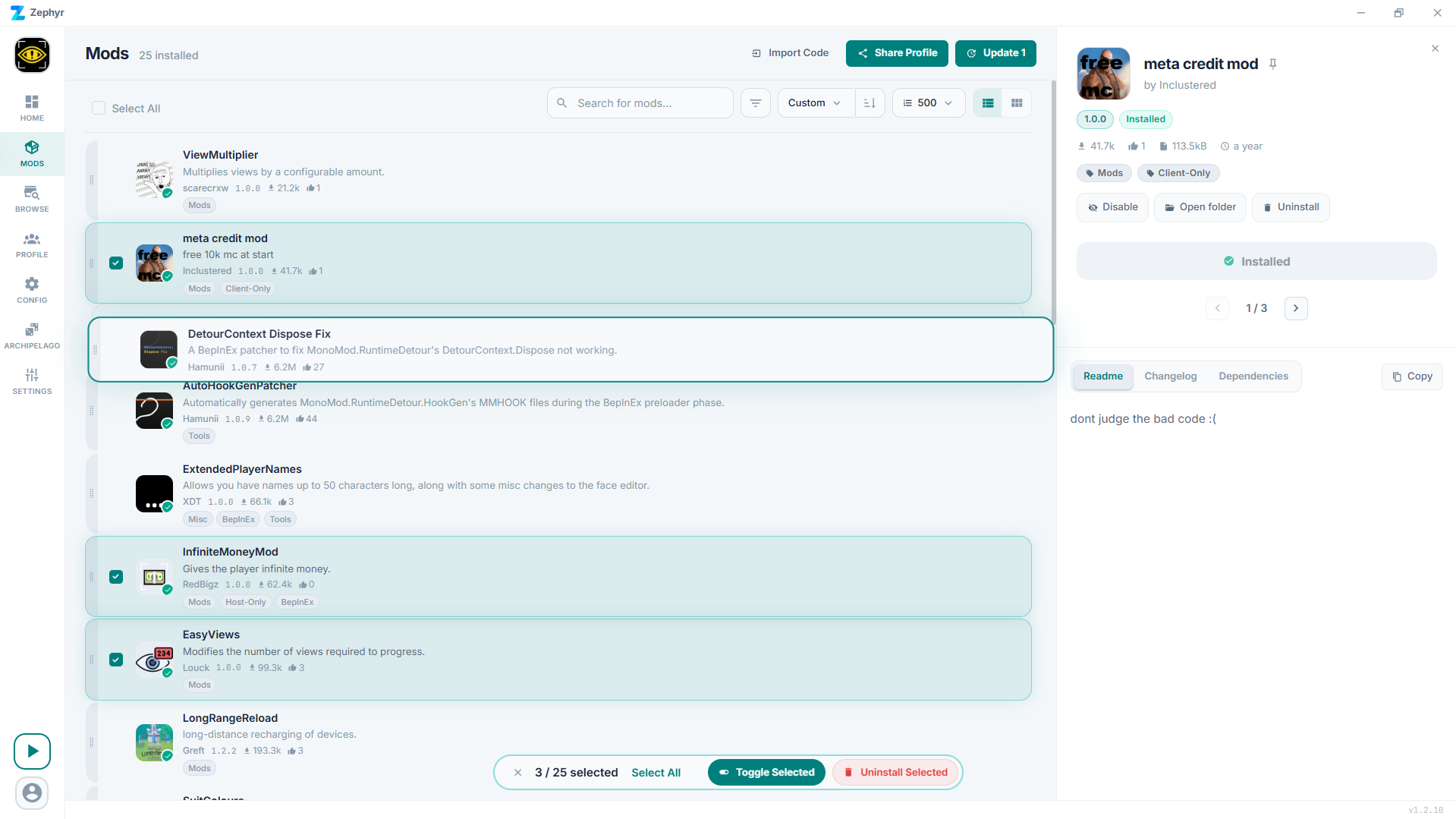
Each row shows the mod, its current version, an enabled/disabled toggle, and a context menu for less-frequent actions.
Enable / disable
The toggle on each row enables or disables the mod for the active profile. Disabling doesn't uninstall - the files stay on disk, the mod just isn't loaded by the framework. Re-enabling is instant.
This is the right move when you want to test if a mod is causing a crash without losing your config.
Updating
If a newer version is available, an update banner appears on the row. Update individual mods, or use the Update all banner at the top of the list to update everything in the profile in one go.
Reordering
Some modding frameworks load mods in a specific order, and a few mods need to load before or after others to behave. With Custom sort selected you can drag the rail on the left edge of each card to change its position. Pinned mods stay at the top and aren't draggable.
Most users will never need to touch this. The handful of mods that care will say so in their readme.
Bulk actions
Select multiple mods (the selection bar appears once one is checked). The batch actions are:
- Toggle Selected - enable or disable the whole selection.
- Install Selected - re-install / repair the selection.
- Uninstall Selected - remove the selection.
Zephyr warns if the action would break dependants of the selection.
Filtering and search
The search box filters the visible mods. The filters panel lets you narrow further by NSFW or deprecated visibility and by category.
Mod detail
Clicking a mod opens its detail panel with the readme, dependency list, and version history.
Uninstalling
Right-click a row -> Uninstall. Zephyr removes the mod's files. If the mod is a dependency of others, it warns you first.
Other context-menu actions
- Enable / Disable - same as the row toggle.
- Pin to top / Unpin - keep a mod stuck at the top of the list regardless of sort order.
- Edit config - jump to the Config page filtered to this mod's files.
- Open folder - open the mod's install folder in the file manager.
- Open website - open the mod's Thunderstore / CurseForge page.
- Donate - open the mod author's donation link if they set one.
Per-profile, not per-game
Reminder: everything on this page is scoped to your active profile. Switching profiles in the Profiles page shows a different set of installed mods.