Building a YAML
Each player in an Archipelago session is described by one YAML file. It says which game they're playing and how they want it randomized - what's in the item pool, what's already unlocked, how many checks, all the gameplay knobs.
In Zephyr, you don't write YAML by hand. You fill in a form and the YAML is generated for you. Saving the form produces a player slot.
Open the configurator
Archipelago page -> click a game card. The configurator opens with that game's options laid out by category.
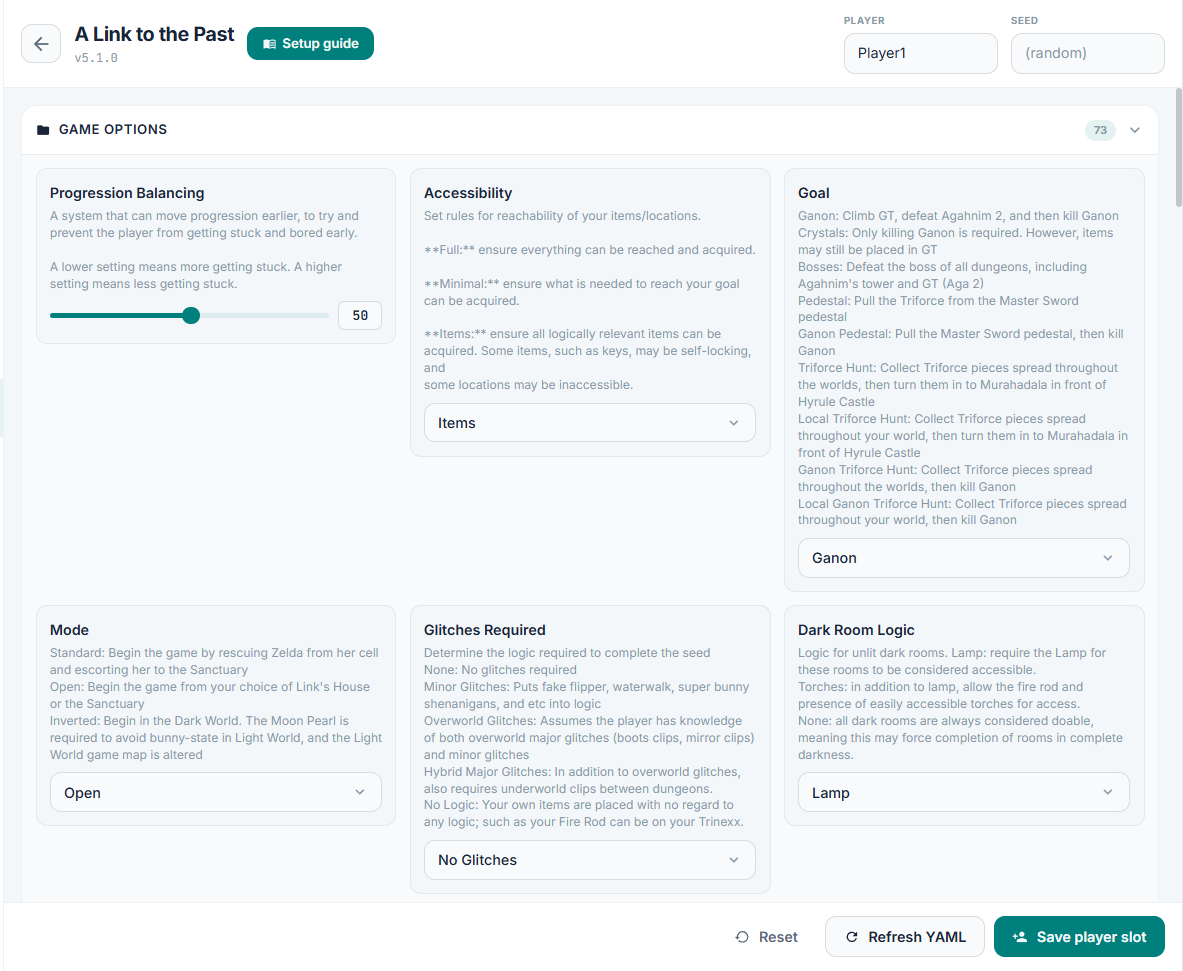
How options are organized
The form is grouped by category, with categories defined by the APWorld author. Common categories you'll see across most games:
- General
- Goals
- Items
- Entrances
- Logic
- Cosmetic
- Advanced
Click a category header to collapse/expand it. Categories you've changed something in show a "changed" indicator next to their name.
Option types
The form generator handles the standard Archipelago option types:
- Toggle - on/off switch.
- Choice / Select - dropdown with a fixed set of choices.
- Range - slider with min/max.
- Multi-select - pick several values from a list.
- Text - free-form text input.
Each option shows the author's description directly underneath it.
Defaults and presets
The form is pre-filled with the APWorld's default values. The Preset dropdown at the top loads pre-baked configurations the author shipped (e.g. "Beginner", "Standard"). Picking a preset overwrites your current values for that game.
To get back to defaults, use the Reset button.
Start inventory
For games that support it, a Start Inventory section lets you list items the player begins with. Type the item name and a count, or click Browse items for a picker:
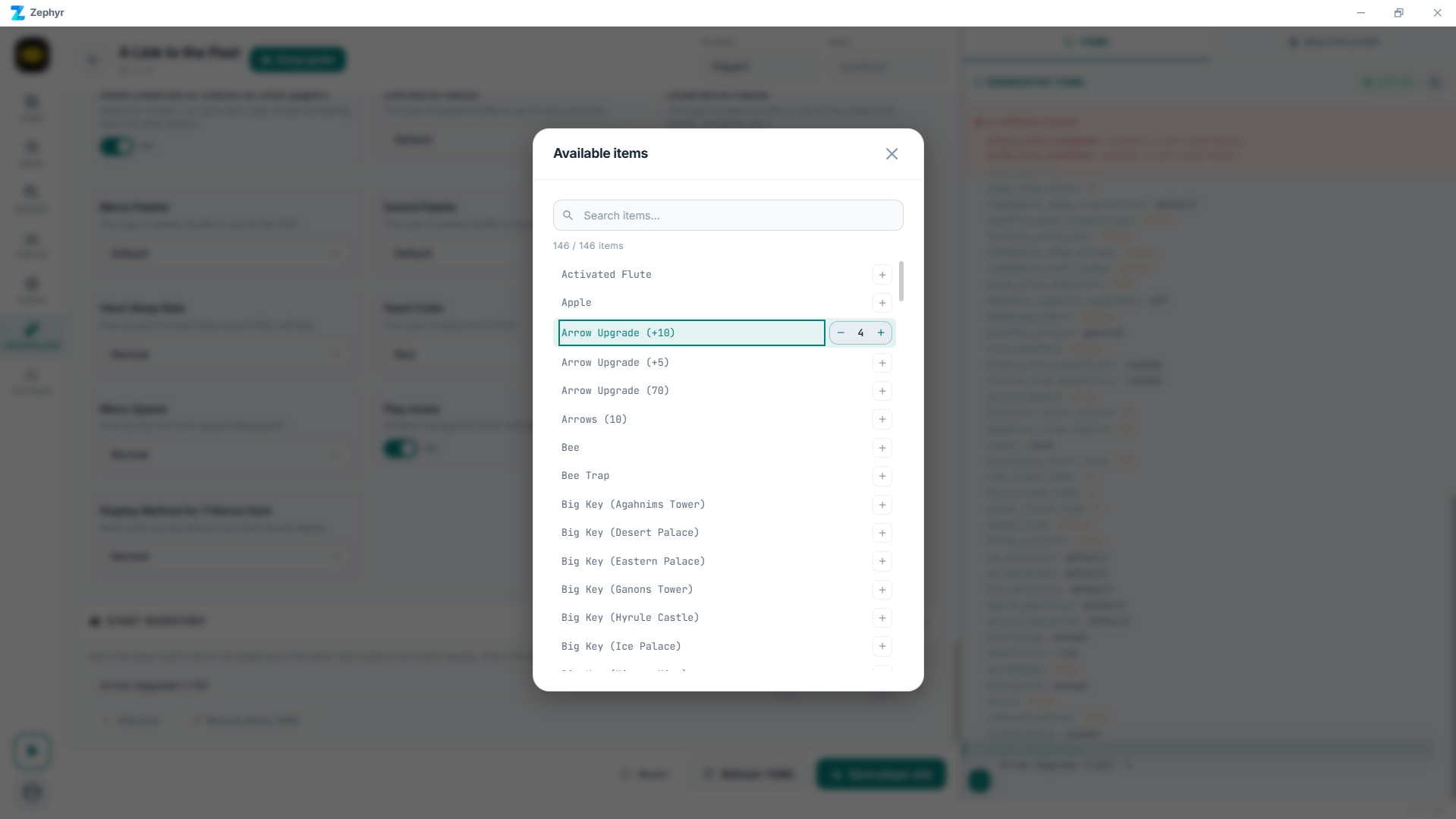
Item names must match exactly. The picker is the easier flow if you don't have item names memorized.
Player name and seed
At the top of the form:
- Player - what you'll be called in the multiworld. Defaults to the standard placeholder; change it.
- Seed - leave on (random) for a random seed; type a value for a deterministic one. Same seed + same YAML = same generated game.
Live YAML preview
Switch the right pane to the YAML tab to see the YAML being built in real time:
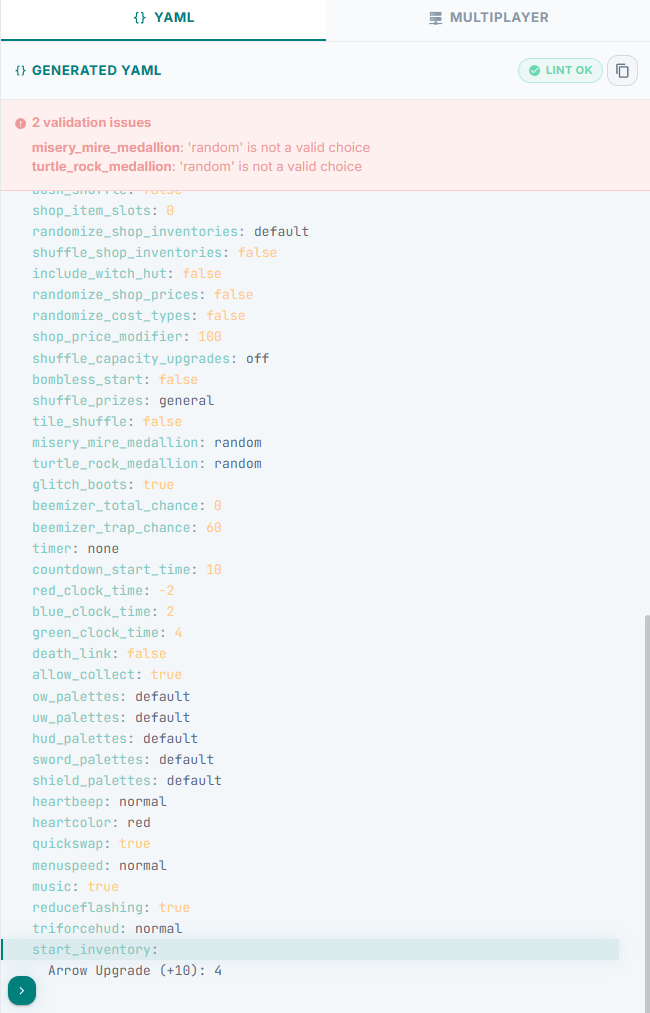
There's a Copy YAML action for sharing without saving a slot.
Validation
As you change options Zephyr runs YAML lint. Errors show up in the YAML pane with a count of validation issues. You can still save the slot but the seed generator may reject it.
Saving as a player slot
When you're happy, click Save player slot. The YAML is written to the runtime's player folder and a row appears under Player slots in the Multiplayer panel. You can save multiple slots per game (different settings, or one per real player you're configuring on their behalf).
To start fresh, use Reset. To rename or delete a slot, use the actions on the slot row in the Multiplayer panel.