Joining as a client
You've got a .apXXX patch file from someone hosting a multiworld and you want to play. This page covers the general flow, plus a few game-specific quirks.
TIP
Zephyr the app doesn't replace the game-specific Archipelago client. You install your game's mod/patch, that mod talks to the server. Zephyr just helps you get the patch onto the right files for the games it knows about.
The general flow
For any Archipelago-supported game:
- Install the game's Archipelago client. This is usually a mod for the game, distributed via the game's regular modding channels (Thunderstore, the game's Discord, GitHub).
- Apply the patch. Most games use a
.apXXXfile to patch the ROM/save/profile. Each game's client has its own way of doing this - check the game's setup guide. - Connect. Run the game with the AP mod, enter the server address, port, and your player slot name.
Patching with Zephyr
For games where Zephyr knows the patching procedure, the Quick Actions → Patch game menu does the work:
- Pick your
.apXXXfile. - Pick the game's data file/folder if Zephyr can't find it automatically.
- Zephyr applies the patch and tells you where the patched output is.
This works for the games where Zephyr ships a patcher - primarily SNES/GBA-era ROM-based games, plus a few PC games where the AP integration is just dropping a config file.
For games not in this list, follow the game's own setup guide. The .apXXX file is the same regardless.
Connecting
In the game's Archipelago client:
- Server: the IP/hostname your host gave you.
- Port: usually
38281. - Slot name: your
namefield from the YAML you sent the host. Case-sensitive. - Password: the host might have set one. Empty if not.
Zephyr also includes a built-in tracker/text client. Open the in-app Console (Quick Actions → Console) and switch to the Client tab to connect directly:
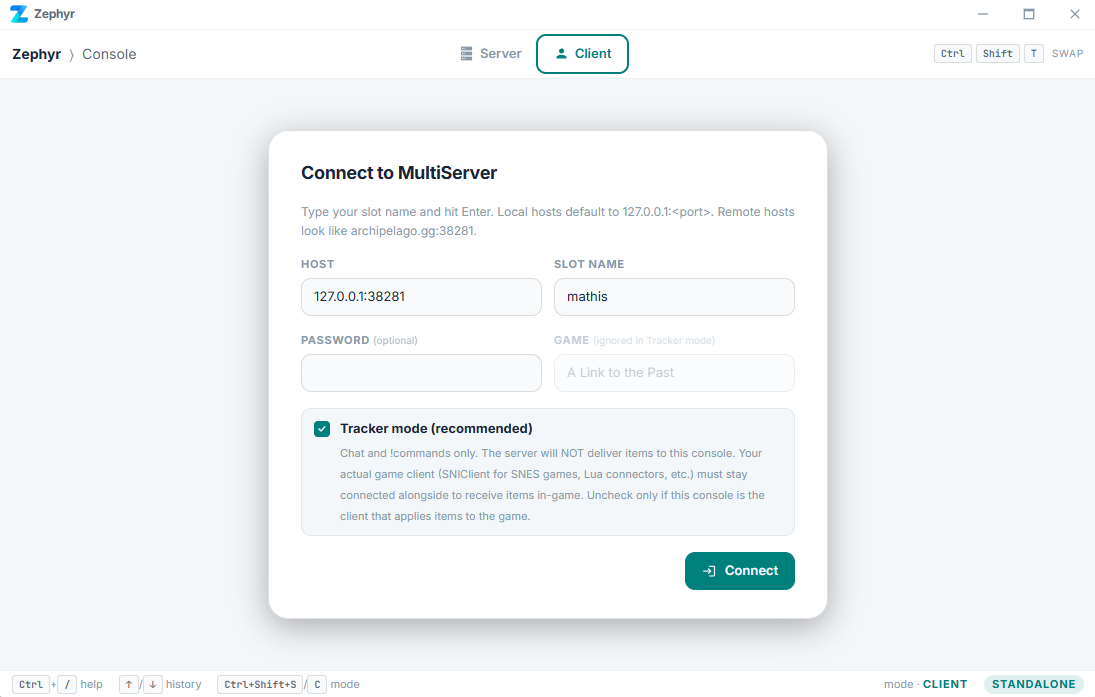
If the connection works, the client confirms with your slot info and the multiworld can begin.
Per-game tutorials
Zephyr's catalog page for each game has a Setup guide link that points at the official archipelago.gg tutorial for that game (when one exists). For custom APWorlds the link goes to whatever the world author specified, or is hidden if none.
This is the most reliable source for game-specific setup details - they cover ROM versions, mod loader install, troubleshooting per game.
Common issues
"Connection refused" - the host's port isn't open from your network. Check they did port-forwarding or are using a tunnel; ask them to test with telnet <ip> 38281 from outside their LAN.
"Slot 'X' not found" - typo in slot name, or the YAML you used isn't the one the host generated with. Confirm name + the seed file matches.
"Wrong game" - your patch file is for game A but you're trying to use it with game B's client. Each .apXXX extension corresponds to one game.
Game crashes on launch after patching - the wrong base file (ROM hash mismatch, wrong version of the PC game). Check the setup guide for the exact file required.
For Zephyr-specific patching issues, see Randomizer troubleshooting.
Disconnecting cleanly
Most game clients have a /disconnect or similar. The server tracks this and will let your slot reconnect from a different machine if needed.
If your client crashes mid-session, just relaunch and reconnect. Archipelago is stateful - your inventory and check progress are stored server-side.